Exactly one entry per day. Open the app and you are on today’s page; everything saves itself, even offline.
One entry a day, no decisions
Diarum has one core rule: exactly one diary entry per day. No file names, no titles, no folders, no “where should this go?”. The date is the entry. Today’s thoughts go into today.
After you sign in, Diarum opens today’s entry with the cursor ready in the editor. Prefer the big picture first? Switch the homepage to the calendar overview in Settings → General → Homepage.
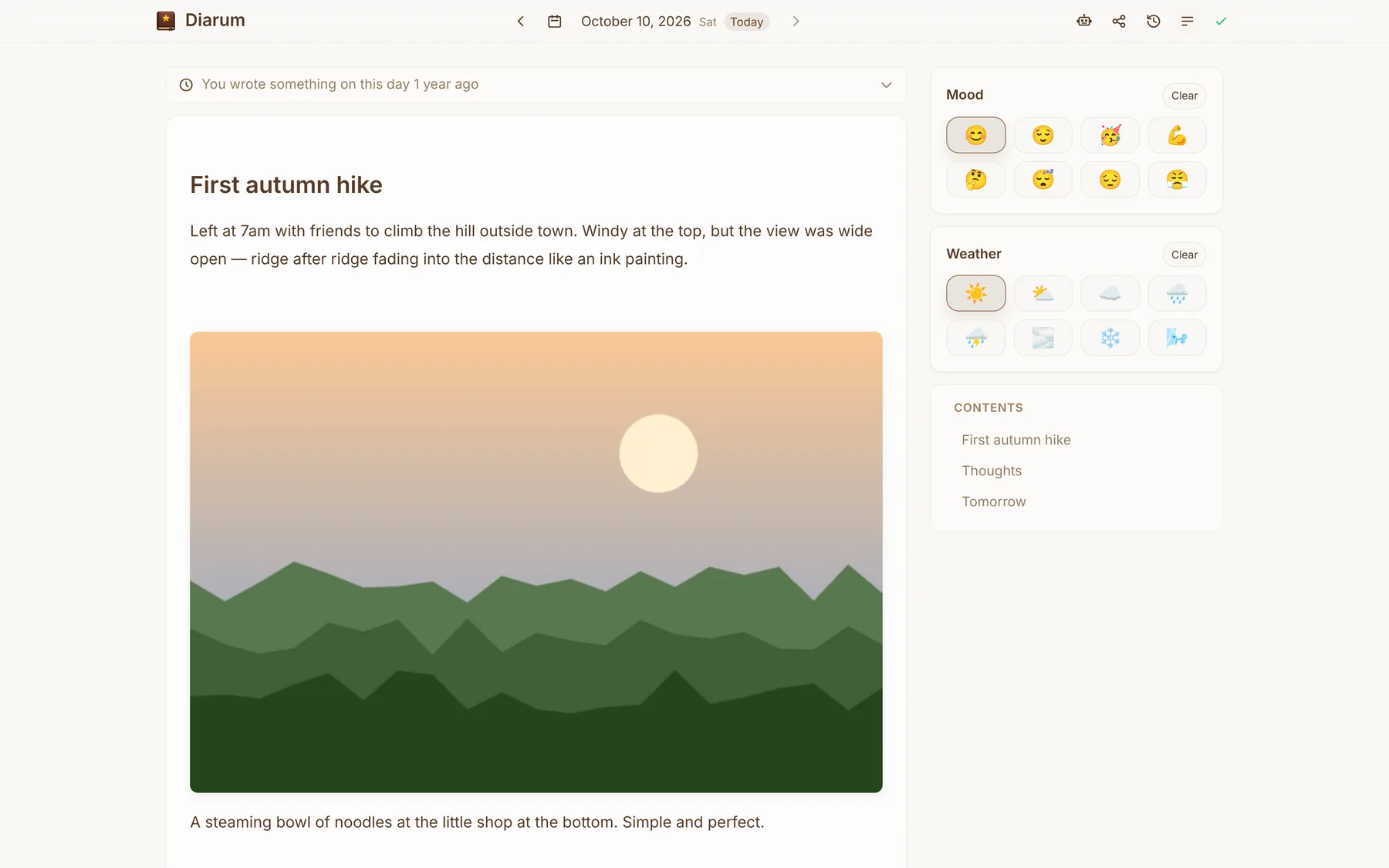
Open and write — it saves itself
- Auto-save: pause for a moment and your words are saved. The status icon shows Saved / Syncing / Offline at a glance, and
Ctrl+S/⌘Ssaves right away. - Works offline: edits made without a connection are kept locally and synced when you are back online. Recent entries are cached on the device, so you can read and write on the subway or on a plane.
- Installable PWA: add Diarum to your home screen or desktop and it runs full screen like a native app, with update prompts.
An editor that stays out of the way
The Tiptap-based editor is WYSIWYG and still speaks Markdown:
- Type
/for the command menu: headings, bullet and numbered lists, task lists, quotes, code blocks, dividers, images, image URLs, galleries… - Markdown shortcuts work as you type, e.g.
##for a heading or- [ ]for a task. - A table of contents is generated on the side so long entries stay navigable.
- Record a mood and the weather for every entry. The emoji choices are yours to customise in Settings → Mood & Weather.
Version history
Every save keeps the content it replaces as a history snapshot (10 per entry by default, adjustable from 1 to 20). Preview any version and restore it in one click — the version you restore over stays in history too, so a restore can always be undone.
Calendar, streaks and On This Day
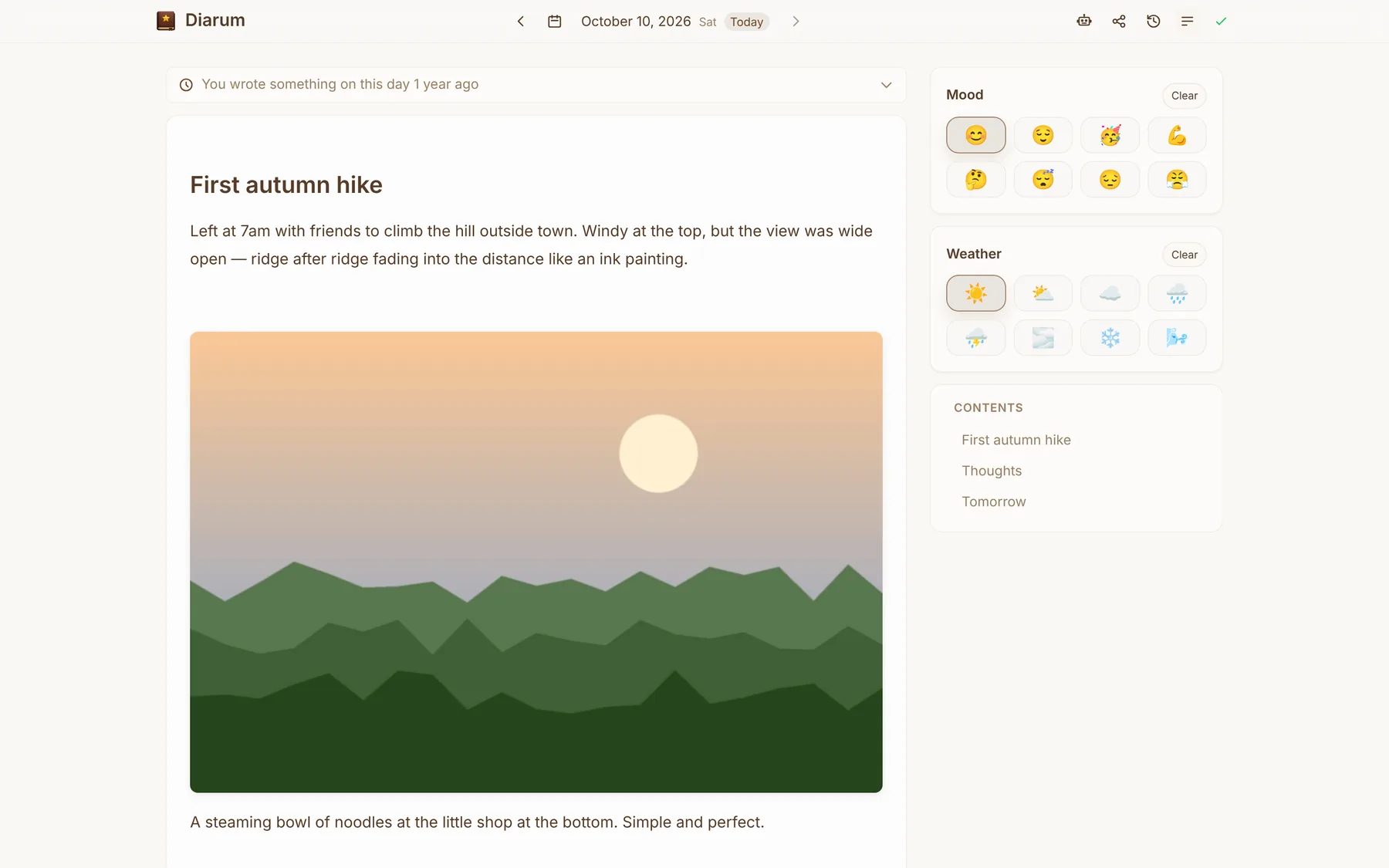
The calendar shows each day’s mood and weather emoji, next to this month’s count, your current streak and the total number of entries.
On This Day quietly tells you when you wrote something on the same date in earlier years — expand it to read those entries again.
Full-text search
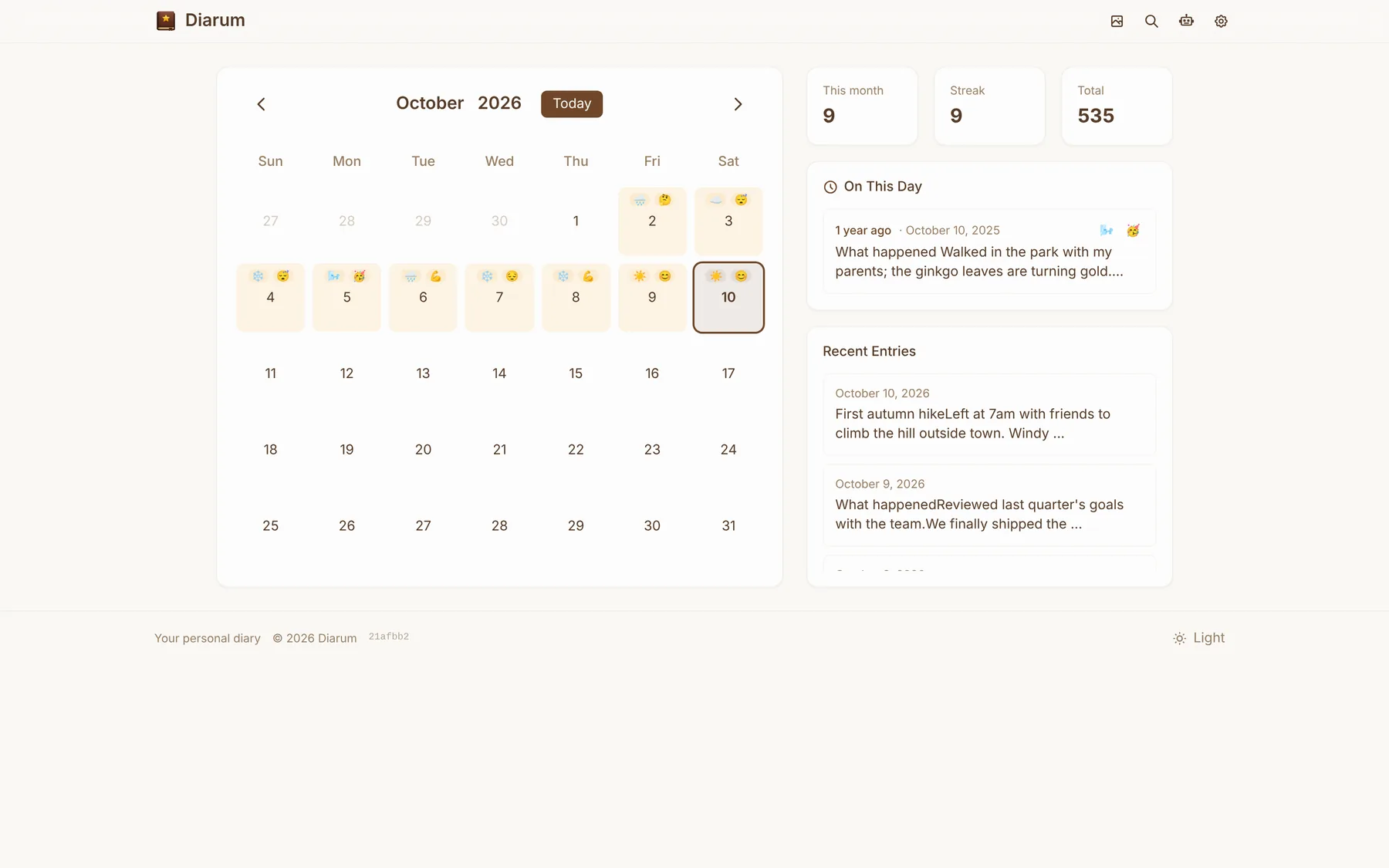
Search across every entry you have ever written. Results are newest first with the matching text highlighted.
Three visual styles
Switch in Settings → General → Visual style:
| Style | What it looks like |
|---|---|
| Classic | A clean editor page (default) |
| Immersive | An open book: the date, mood, weather and On This Day on the left page, your entry on the right |
| Windows 95 | A retro desktop with Notepad, a diary tree, a document outline and a Start menu |
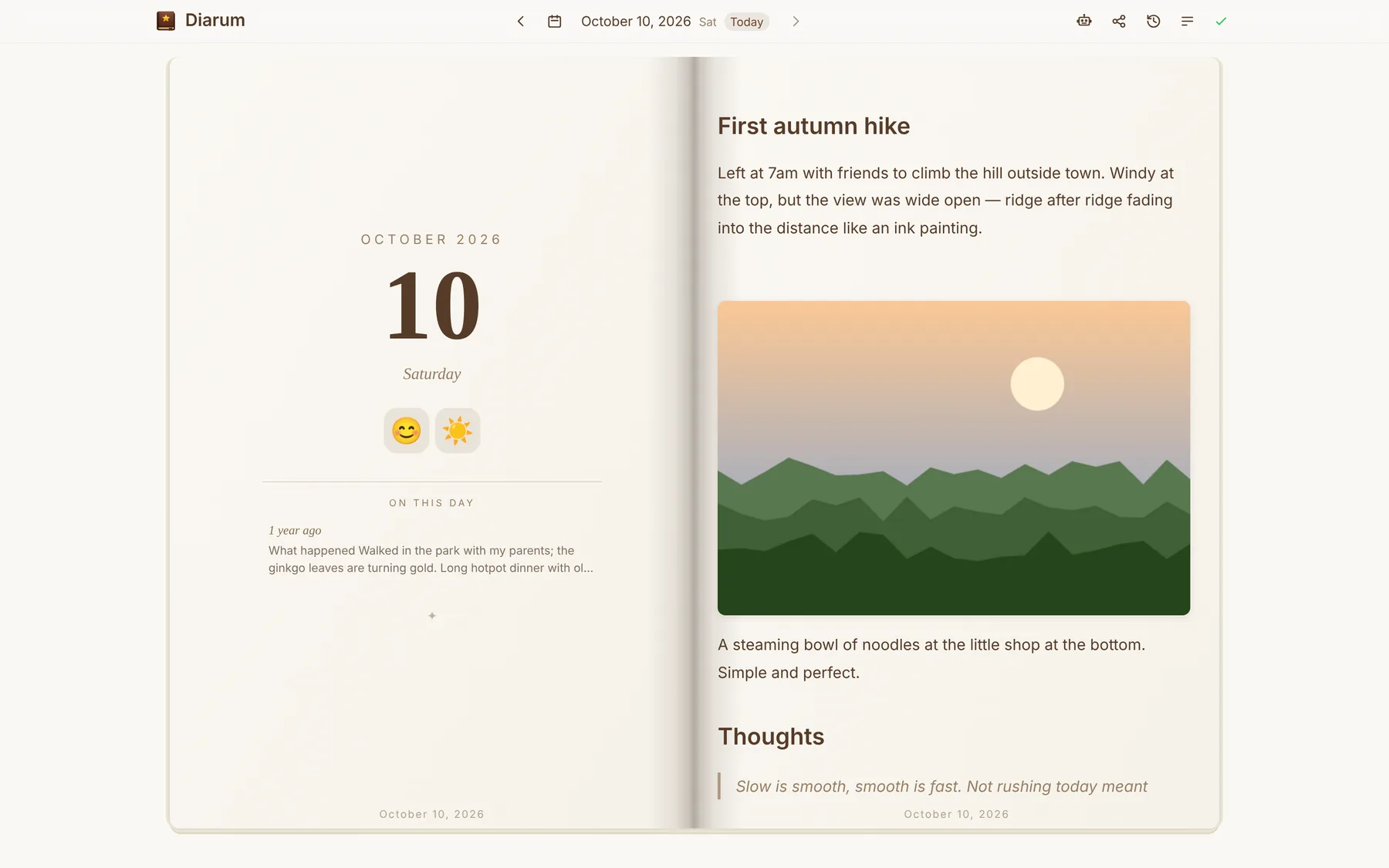
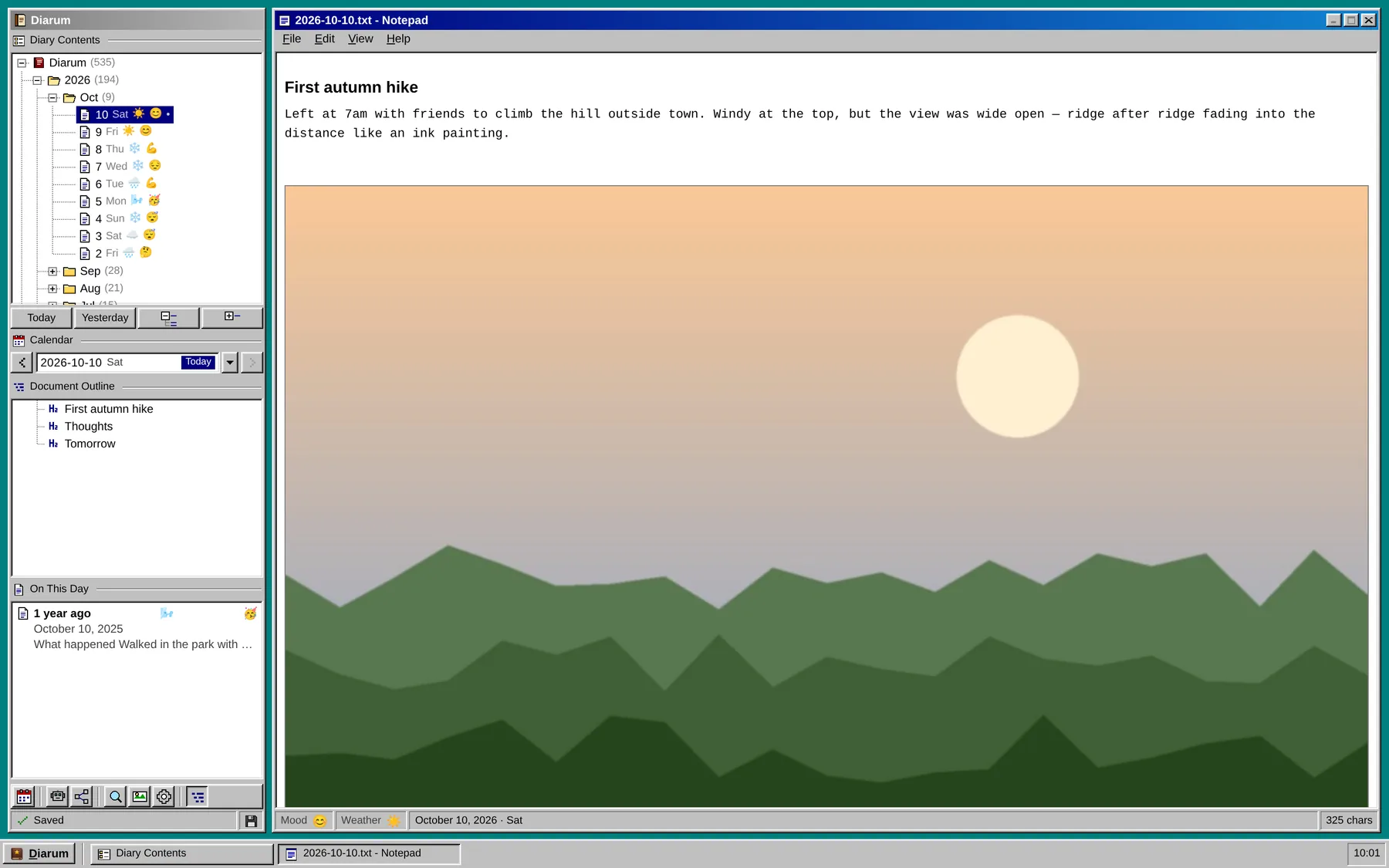
Every style supports light, dark and system themes, and the interface is available in English and Simplified Chinese (following your browser by default).