
Export a complete archive of entries, images and AI conversations in one click, and back up automatically to your own S3 on a schedule with retention and one-click restore.
Export
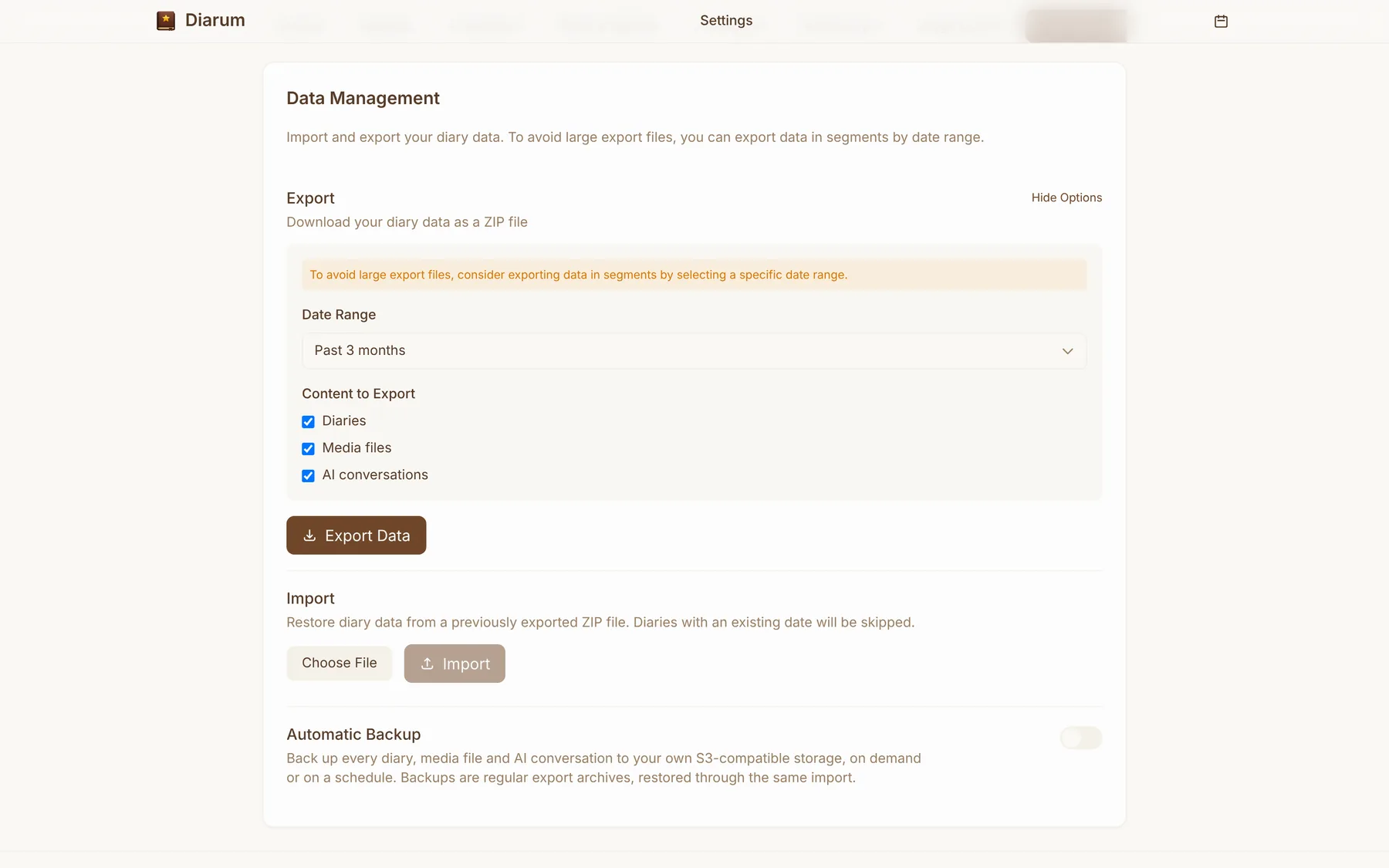
Settings → Data management exports a standard .zip archive:
- Pick a date range;
- Choose what to include: diary entries, media files and AI conversations;
- The archive contains
diarum_export.json(all structured data), amarkdown/folder with one Markdown file per day, and the original images undermedia/.
So even if you stop using Diarum one day, any Markdown editor can open your diary.
Import
Import an archive back into Diarum to restore entries, images and AI conversations — to move to a new server, merge instances or restore from a backup.
Imported entries are embedded automatically, so the AI assistant is ready right away.
Automatic backups to S3
Configure any S3-compatible bucket (AWS S3, Cloudflare R2, MinIO, Backblaze B2, …):
- Manual backups whenever you like;
- Scheduled backups with a cron expression (daily at 02:00 by default, at least 15 minutes apart) in the time zone you choose;
- Retention — older backups beyond the count you keep (3 by default) are deleted after each run;
- Connection test — checks the bucket accepts writes, reads, listings and deletes before you save;
- Backup logs — a detailed log for every run;
- Download and restore straight from the backup list.
A backup is just a regular export archive, restored through the same import — simple and dependable.
Storage and migration
Everything the server keeps lives in your data directory: the SQLite database diarum.db, local images, audit logs and the visitor database. Copy the directory and you have moved the whole instance.
When upgrading from an old release, if data.db exists and diarum.db does not, Diarum migrates users, entries, media, settings and AI conversations automatically and leaves the old database untouched.